|
CS 332
Recognition Lab Due: Friday, October 28 |
|
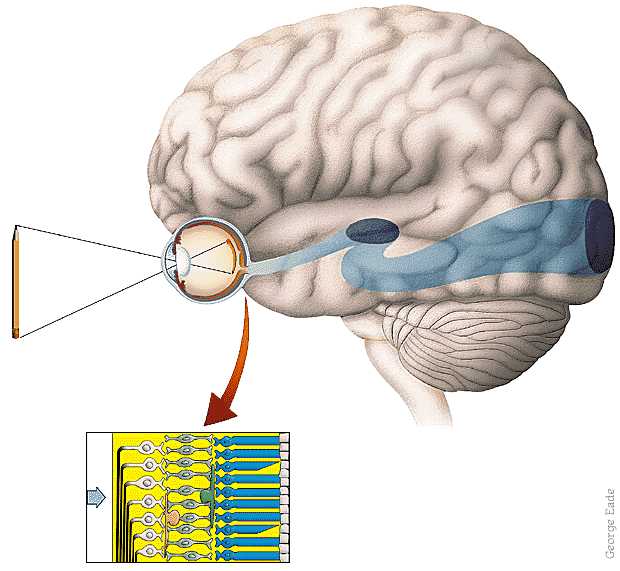
In this lab, you will complete the implementation of a simple version of the alignment method for recognizing 3D objects that was discussed in class, and apply this method to the problem of recognizing simple 3D wireframe objects. Similar to the paper-and-pencil exercise we completed in class (using the cartoon models of Harry and Henry), the 2D model views and the novel image to be recognized are all related by a simple rotation of a 3D object around a central vertical axis.
You are welcome to work with a partner on this lab.
To begin, download the /home/cs332/download/recognitionLab folder and set the
Current Folder in MATLAB to this folder. You will complete the definition of the
matchModel function stored in the matchModel.m code file. This file
currently contains only the header of the function.
A GUI program is provided that calls the matchModel function. To run the GUI
program, enter alignGUI in the MATLAB Command Window. When you are done,
click on the close button on the GUI display to terminate the program.
The figure below shows a snapshot of the full program in action, after completion of the
matchModel function:
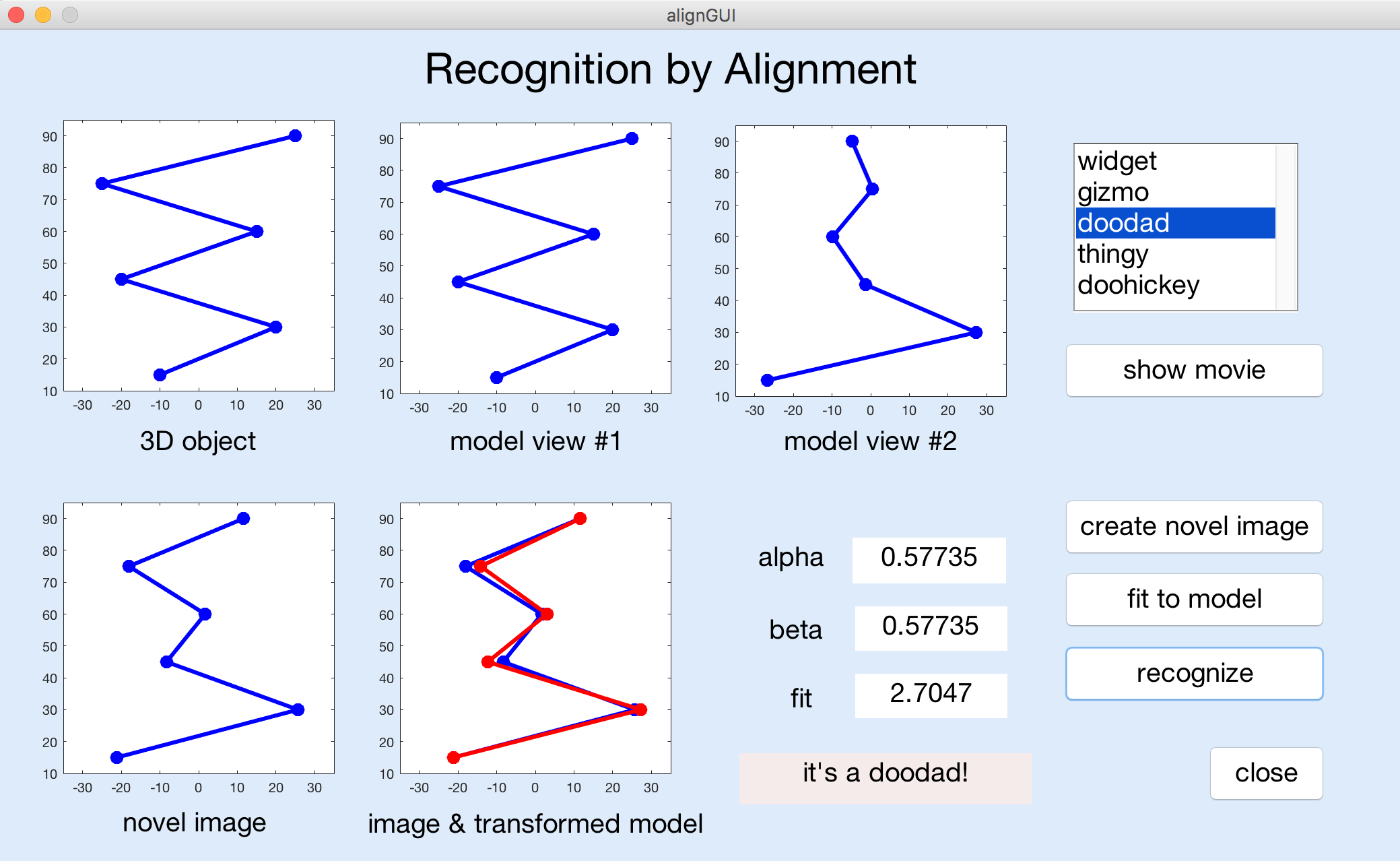
The "objects" in this application are 3D wireframe objects defined by a set of six vertices
(including the endpoints) connected by lines. Each vertex has 3D (x,y,z) coordinates,
but the stored model for each object, which is used for recognition, consists of only the
2D (x,y) coordinates of the vertices as seen in two distinct views. The two views
are related by a rotation of the 3D coordinates by 60° around a central vertical axis. The
y coordinates (vertical positions) of the six vertices are the same for all five
object models.
Even before completing the matchModel function, you can run the GUI program and
perform the following actions:
- select an object from the listbox in the upper right corner
- click on the "show movie" button
- click on the "create novel image" button
Clicking on the "fit to model" or "recognize" buttons will generate an error that is printed in the Command Window, but the GUI program will continue running. When you select a new object, the two 2D model views of the object will be displayed. The first model view will also be shown in the upper left window. An animation of the object rotating in 3D will appear when you click on the "show movie" button. The "create novel image" button generates and displays a novel view of one of the five model objects, selected at random.
The matchModel function, whose header is shown below, has three inputs
M1, M2, and novel that are each a 6x2 matrix. The first and second
columns of each matrix contain the x and y coordinates, respectively,
for the 6 vertices.
function [alpha, beta, fitVal, fitImage] = matchModel(M1, M2, novel)
This function also has four outputs. alpha and beta are the
coefficients that define the linear combination of the x coordinates of the two
model views, as described in class. fitVal is a measure of how well the image
generated from this linear combination (i.e. the predicted x coordinates of the
vertices) matches the input novel image (i.e. the actual x coordinates stored in
the first column of the input novel matrix). The matchModel function
should use the topmost and bottommost endpoints of the model and novel views to compute
alpha and beta — these are stored in rows 1 and 6 of the
input matrices. The fitVal can be calculated as the mean absolute difference between
the predicted and actual x coordinates for the remaining four vertices (stored in rows
2 to 5 of the input matrices). The output fitImage should be a 6x2 matrix where
the first column contains the x coordinates predicted by the linear combination
of the input model views, and the second column contains the same y coordinates
as those stored in the input matrices.
On the GUI for the alignGUI program, clicking on the "fit to model" button will
call the matchModel function with the currently displayed object model and
novel image, and display the results. Clicking on the "recognize" button will compare the novel
image to all five object models and display the results for the best match.
After completing the definition of the matchModel function, add comments to the
file with answers to the following questions:
- This application assumes that the model views and novel image view are related by the rotation of a 3D object around a central vertical axis. In general, what other kinds of geometric transformations could an object undergo, that would effect its appearance in the image? You need not assume that the object is rigid.
- Suppose you could enhance an alignment method such as this with the idea of parts decomposition, e.g. the ability to define an object as comprised of characteristic subparts. How might this allow you to recognize more complex objects such as a human body?
Submission details: Hand in a hardcopy of your matchModel.m
code file with the answers to the above questions, and drop off an electronic copy of the
code files by logging into the CS file server,
connecting to your recognitionLab folder, and executing the following command:
submit cs332 recognition *.*
If you are working with a partner, you only need to hand in one hardcopy with both names, but both partners should submit an electronic copy of the files.